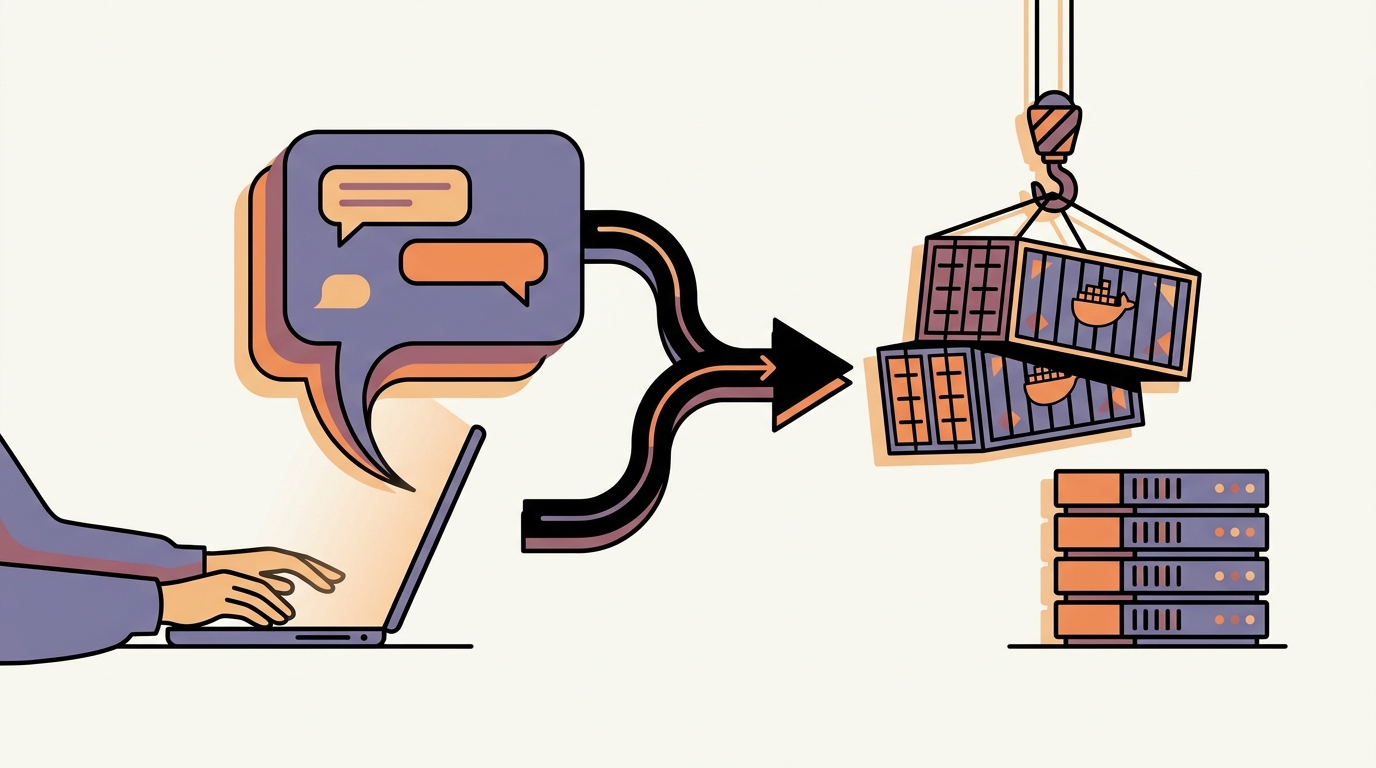
The big picture
The four moving parts:
- An open-source web app on GitHub — the thing you want to run.
- A Docker image — a packaged-up version of that app you can install with one command. Some apps publish one themselves; for others you'll build it yourself.
- GitHub Container Registry (ghcr.io) — a free home for your packaged image. Comes with every GitHub account.
- Dargo Developer mode — uploads a small recipe file (
docker-compose.yml) that tells Dargo "go pull this image from ghcr.io and run it as an app."
The AI's job is to translate the app's README into the Docker recipe file. Your job is to set up the accounts, run a few commands, and report errors back to the AI when things go sideways. Let's walk it through.
Step 1 — Pick an app
If you don't have one in mind, browse awesome-selfhosted — a curated list of self-hostable web apps, sorted by category. Pick something that:
- Has had a commit in the last 6 months (look at the GitHub repo's commit history). Abandoned projects break in surprising ways.
- Has 500+ stars. Filters out half-finished hobby projects.
- Mentions "Docker" or "Dockerfile" or "docker-compose" in the README. Means it's at least been tried in a container before; even if you have to build the image yourself, the developer has thought about this use case.
For the rest of this guide we'll pretend you picked Tinyfile — a fictional simple open-source file sharing app at github.com/example/tinyfile. Substitute whatever you actually picked.
Step 2 — Talk to the AI
Open Claude, ChatGPT, or Gemini — any of them will work. Paste this prompt, replacing the parts in bold:
I want to self-host Tinyfile (https://github.com/example/tinyfile) on a server called Dargo. Dargo runs apps as Docker containers under
docker compose.Constraints:
- No host filesystem mounts. Use named Docker volumes only.
- One service exposes one HTTP port on the host. Use the variable
${LOCAL_PORT:-7000}for the host port.- Pass any required secrets as environment variables.
Please:
- Read the project's README and figure out what services it needs (the app itself, plus any databases / caches / sidecars it depends on).
- Check if the project already publishes a Docker image. If yes, use that and skip step 3.
- If no published image: write a
Dockerfilethat builds the project from source.- Write a
docker-compose.ymlthat runs the whole stack.- Explain in plain English what each part of the file does.
Hit send. The AI will give you back one or two files and an explanation. The explanation is for you, the files are what you'll actually use.
Don't worry yet about understanding the files. The point is to have something to test. If the AI says it can't access the README, paste the README text in directly — most chatbots can read URLs but not always.
Step 3 — Set up GitHub Container Registry (ghcr.io)
You only need this step if the AI told you "this project doesn't have a published Docker image" and gave you a Dockerfile. If the AI's docker-compose.yml uses an existing image (something like image: example/tinyfile:latest with no Dockerfile), skip ahead to Step 5.
Create a GitHub Personal Access Token
- Sign in to github.com (create a free account if you don't have one).
- Go to github.com/settings/tokens → Generate new token → Generate new token (classic).
- Name: "Dargo container push". Expiration: 90 days is fine.
- Scopes: tick
write:packagesonly. (That auto-ticksread:packagesandrepo— that's fine.) - Click Generate token. Copy the token immediately — you can't see it again.
Build and push the image
You need a computer with Docker installed for this — Docker Desktop on Mac / Windows, or Docker Engine on a Linux box. If you have a Dargo Mini Server with developer mode enabled, you can do this on the device itself via the browser terminal — that's the path with no extra setup.
Save the AI's Dockerfile somewhere (a folder on your computer). Open a terminal in that folder and run:
# Log in to ghcr.io with your GitHub username and the token from above.
echo "YOUR_GITHUB_TOKEN" | docker login ghcr.io -u YOUR_GITHUB_USERNAME --password-stdin

# Build the image. ghcr.io/USERNAME/APPNAME:latest is the image's name.
# All lowercase, even if your GitHub username has capitals.
docker build -t ghcr.io/your-github-username/tinyfile:latest .

# Push it.
docker push ghcr.io/your-github-username/tinyfile:latest
The push uploads ~50–500 MB depending on the app, then GitHub stores the image for free. Open github.com/YOUR-USERNAME?tab=packages to confirm it landed.
Make the package public (one-time)
By default GitHub keeps your pushed images private — Dargo can't pull them without auth. Easiest path: make the image public.
- On the package's GitHub page → Package settings (right column) → scroll to Danger Zone → Change visibility → Public.
- Read the warning, confirm.
"Public" only means the packaged binary blob is publicly downloadable — it doesn't expose your source code or your data. It's the standard pattern for self-hosted Docker images. If you'd rather keep it private, that's possible but requires generating a separate read-only token and wiring it into Dargo as a registry secret — open a support ticket and we'll walk you through it.
Step 4 — Update the docker-compose.yml
In the AI's docker-compose.yml, find the line that looks like:
image: tinyfile:latestChange it to point at your pushed image:
image: ghcr.io/your-github-username/tinyfile:latestSave the file. This single line is what tells Dargo where to pull the packaged app from.
Step 5 — Install it on Dargo
Sign in to my.dargo.net. If you haven't already:
- Open Settings, scroll down, turn on Developer mode.
- A Develop tab appears in the menu. Click it.
On the Develop page:
- Click Upload custom app.
- Give it a name (e.g. "Tinyfile") and an icon letter (the AppStore-style single-letter avatar).
- Drop in the
docker-compose.ymlfile the AI generated (with the image line updated to your ghcr.io URL). - Pick which device to install on, pick a subdomain or custom domain, click Install.
Dargo pulls the image from ghcr.io, starts the container, hooks up the tunnel + HTTPS + domain, and within a minute or two your custom app is live at the URL you picked.
Step 6 — When something doesn't work (and it will)
First-time installs of AI-generated docker-compose files fail more often than they succeed. That's fine — debugging it is the easy part of the loop, because the AI can read its own error messages.
In the Dargo portal, open the failed install's Logs tab. Copy the full error message — usually the last 30–50 lines have the actual cause buried in them. Paste it back into the AI chat with this follow-up:
I tried to install the docker-compose.yml you wrote. The install failed with this error:
[paste the logs]
What does this mean and how do I fix it? Please give me the corrected file, not just an explanation.
The AI will usually figure out the issue on the first or second iteration — missing env var, wrong volume name, a port collision, a database that needs a password. Drop in the corrected file, redeploy, and the second attempt almost always works.
Common pitfalls and what to ask the AI
"The container starts but I get a blank page / 502 error"
Usually the app inside the container is listening on a different port than what your docker-compose.yml exposes. Tell the AI:
The container starts but the URL shows a 502 / blank page. The app inside is probably listening on a different port than what I'm exposing. What port does Tinyfile actually listen on, and how do I update the compose file?
"The container keeps restarting"
Usually a missing required environment variable (database URL, secret key) that the app exits on. Send the logs and ask:
The container is restarting every few seconds. Logs say [paste]. Which env vars am I missing and what should they be set to?
"Dargo says my image can't be pulled"
Means ghcr.io is rejecting the request — usually because the package is still private. Go back to Step 3 and make it public. Or you forgot to push it at all; check the GitHub Packages page.
"I want this app to send emails"
Dargo has a built-in email service (the same one Ghost and WordPress use in the AppStore). Ask the AI to add Dargo's SMTP relay to the compose file:
Update the compose file so the app uses Dargo's built-in SMTP relay for outbound email. Use the env var
EMAIL_API_TOKENand the hostsmtp.mydargo.com.
Dargo auto-fills the API token at install time, so emails just work without you handling SMTP credentials.
Why this works at all
Open-source projects' READMEs increasingly include enough information for a chatbot to figure out how they want to be run. The AI's job is to translate "this Python web app needs a Postgres database and a Redis cache, exposed on port 5000, with these three environment variables" into the exact YAML that docker compose understands. That's a language-translation task, which is what LLMs are best at.
Your role is the human-in-the-loop: confirm the AI's plan makes sense, run the commands, read the errors back, iterate. You don't need to know what a YAML file is or what Docker actually does under the hood. The AI explains all of that on request.
Limits — when this doesn't work
- Apps that need host filesystem mounts (e.g. some Plex / Jellyfin setups that need to access a media folder on your computer's disk) won't run on Dargo — we only allow named Docker volumes. Pick a different app or skip mounting and treat all data as in-volume.
- Apps that require kernel features like Wireguard, IPVlan, or KVM nesting won't run in our managed Docker. Rare for normal web apps.
- Apps that need GPU acceleration (Stable Diffusion-style image generation, video transcoding) won't be fast on the standard Dargo Mini Server — its compute is CPU-only.
- Very large images (5+ GB) push slowly to ghcr.io on home internet upload speeds. Patience.
One thing the AI can't do
The AI can write the docker-compose file and the Dockerfile. The AI can't guarantee the app does what its README claims. If you're trusting a brand-new project with a small community, treat the install the same way you'd treat installing a random app from a random app store on your phone — and don't put anything irreplaceable in it on day one.
For apps in the official Dargo App Store, we've vetted the image, packaged it consistently, and we update it. The custom-app path skips that vetting — that's the tradeoff for being able to run anything you want.
What to do next
Pick one app off awesome-selfhosted, walk through Steps 1–5, and put it on a subdomain. The first one takes a couple of hours of back-and-forth with the AI. The second one takes 20 minutes. After that you'll start to recognise patterns — "oh this is a database-and-app combo, I know what that compose file should look like" — and your own taste for what's worth running starts to matter more than the technical packaging step.